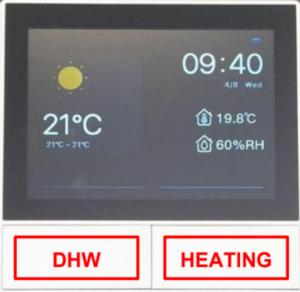
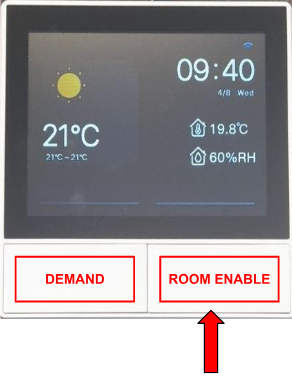
The heating controller allows you to manage both Domestic Hot Water (DHW) and the heating system (HEATING). These functions can be activated using the two physical buttons located at the bottom of the controller:
Domestic Hot Water (DHW) only — left button
Heating + Domestic Hot Water — right button
2. Domestic Hot Water
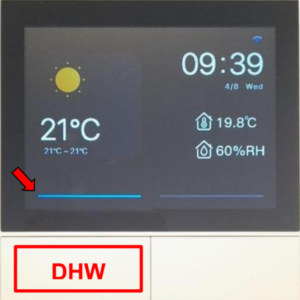
The image below shows the controller’s main page with Domestic Hot Water selected (left button is active when indicated by a blue bar). In DHW mode, the heat pump operates twice daily, from 5:00–6:00 in the morning and 7:00–18:00 in the evening. This schedule ensures you have sufficient hot water for your everyday use (Please note that this is the default schedule and can be adjusted).
3. Heating and Heating Modes
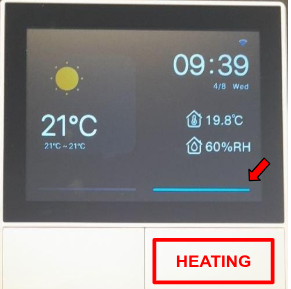
The image below shows the controller’s main page with Heating selected (right button is active indicted by a blue bar).
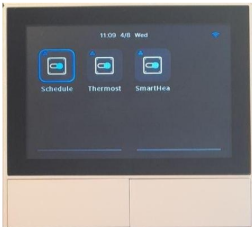
When Heating mode is enabled, Domestic Hot Water is automatically provided as part of the system’s operation. Heating operates according to the selected mode which you can choose by swiping left from the main page:
Schedule
Thermostat
Smart Heating
In the image above the mode “Schedule” is selected (shown through the blue outline around the icon).
3.1. Heating Mode: Schedule In Schedule mode, the heat pump operates twice daily, from 8:00–12:00 in the morning and 18:00–21:00 in the evening (This is the default schedule and can be changed).
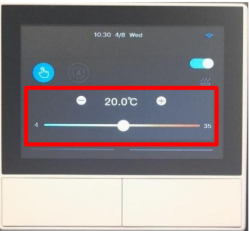
3.2. Heating Mode: Thermostat In Thermostat mode, the heat pump runs until the target temperature is reached. The target temperature (ATC setpoint) can be set using the slider. Swipe right from the main page to access the ATCsetpoint screen. Use the slider at the bottom to adjust the target temperature.
3.3. Heating Mode: Smart Heating This mode is currently not yet available.
4. Current Temperature and Humidity
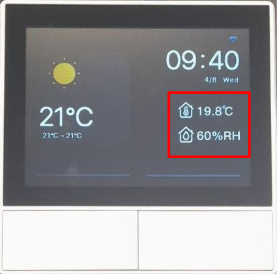
The current temperature of the house or an individual room is displayed on the right-hand side of the main page.
On the Heating Controller panel (see page 1), both the overall house temperature and humidity are shown. On each room thermostat, the room temperature is displayed along with the house humidity.
5. Heating with Room Thermostats
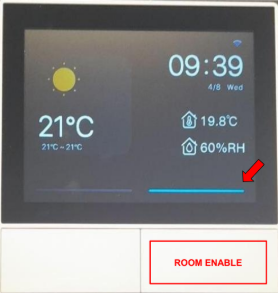
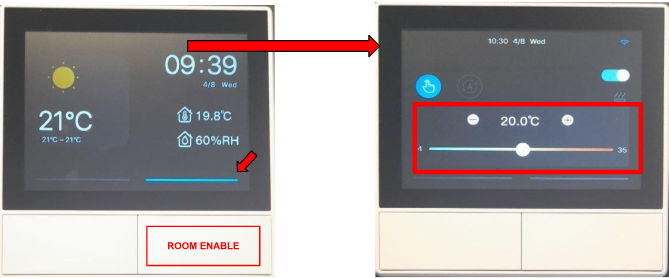
This chapter applies only to customers who have installed room thermostats in addition to the main heating controller. When room thermostats are installed, rooms can be enabled/disabled individually and separately during a heating period. For a room to be enabled in a heating period, select the right button and the blue bar appears on the display.
Please Note: When the heating system is on, only the rooms with an enabled thermostat will be heated. Rooms where the thermostat is not enabled will remain unheated, even while the heating system is running. The room’s Demand (left button) is controlled automatically by the SmartEcoVila Heating Management and should not be operated manually. The demand is directly linked to the room’s valve and is managed by the active mode. As each room can be enabled/disabled individually at any time with the “room enable” button, the demand will automatically switch on/off according to the selected mode. The blue Demand bar indicates that the room is currently being heated.
5.1. Heating Mode: “Schedule” with Room Thermostats
The schedule set for the heating is passed on to all room thermostats. (8:00–12:00 in the morning and 18:00–21:00 in the evening. This is the default schedule and can be changed). As described above, the heating in each room is turned on if the room thermostat is enabled and turned off if the room thermostat is disabled.
5.2. Heating Mode: “Thermostat” with Room Thermostats
Running the heating on “thermostat mode” and having room thermostats installed allows all rooms to be heated to the global target temperature or a room specific target temperature.
5.3. Selecting Global Heating (heating mode: thermostat)
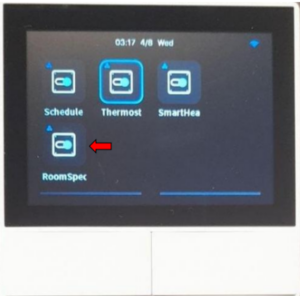
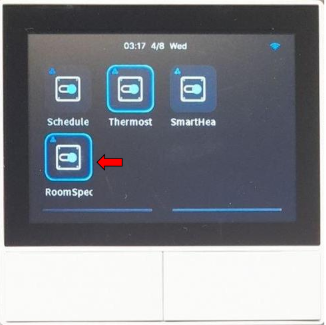
For Global Heating mode, on the Heating Controller’s mode page, the “RoomSpecific” mode must be turned off (No blue icon).
To set a global target temperature for the heating system, adjust the temperature directly on the Heating Controller. When this setting is used, all rooms will share the same target temperature and will be heated and regulated accordingly. Please note: each room will reach the global target temperature at a different time and will turn off (and turn on again) individually.
5.4. Selecting Room Specific Heating (heating mode: thermostat) For Room Specific Heating mode, on the Heating Controller’s mode page, the “RoomSpecific” mode must be turned on (blue icon showing).
To set the target temperature for room specific heating the temperature must be set on each room thermostat individually. Each room is heated and controlled individually according to the room’s set target temperature, turning off (and turn on again) individually.